
Get your tools ready.
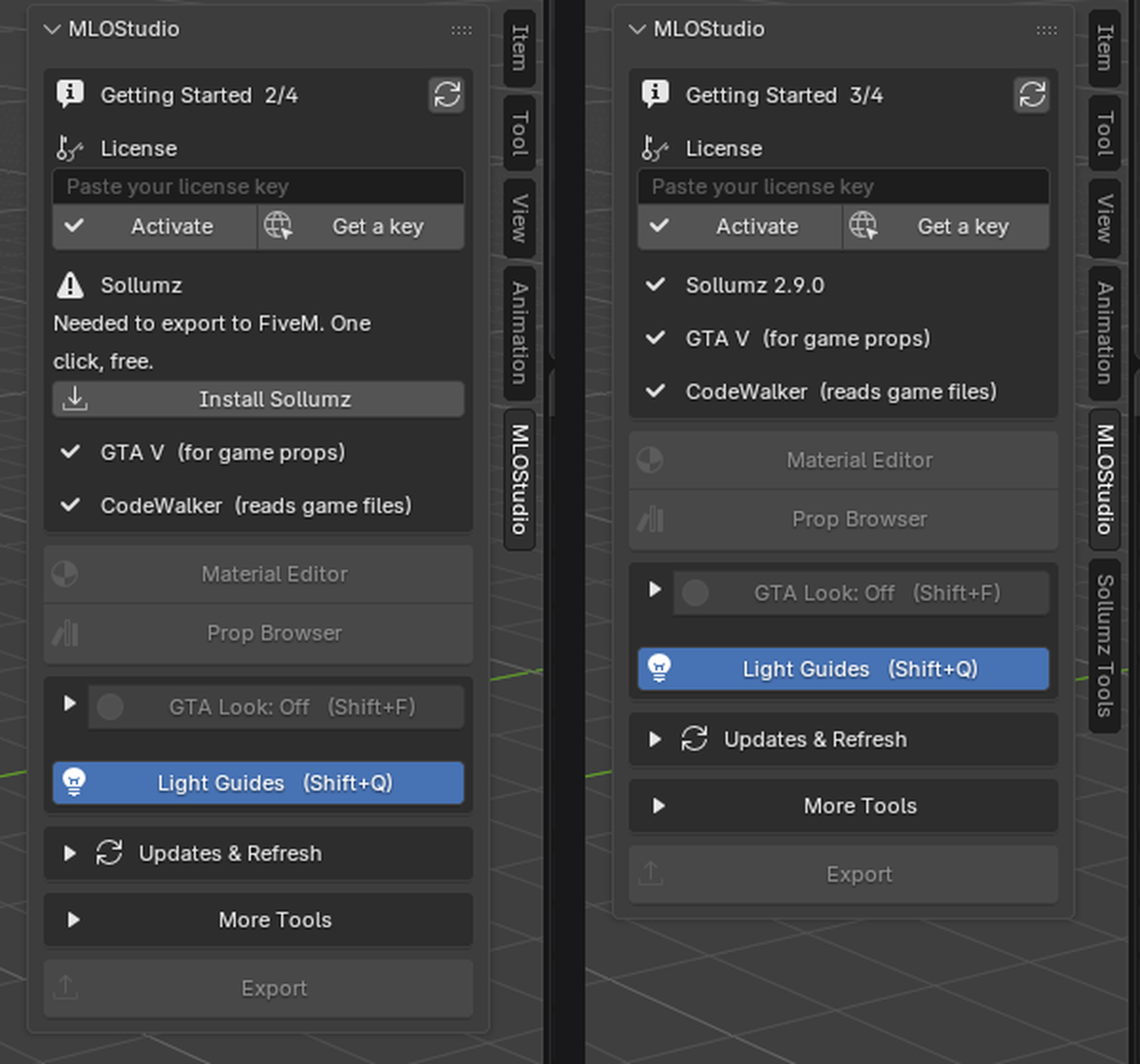
Install the MLOStudio ZIP in Blender (Edit → Preferences → Add-ons → Install from Disk), then press N in the 3D View and open the MLOStudio tab.
The Getting Started box at the top shows what is still being set up: paste your license key and click Activate. Sollumz installs itself in about ten seconds (free, no admin rights) and GTA V and CodeWalker are found for you. When everything has a tick, the box disappears.
A simple floor gives the prop a surface to sit on. You only need to know how to move around Blender's viewport and select an object for this exercise.
If your test scene has no floor, press Shift + A → Mesh → Plane. Press S, type 4 and press Enter to make it larger.
Find one prop.
In Blender's 3D View, press N to show the sidebar. Open the MLOStudio tab and click Prop Browser.
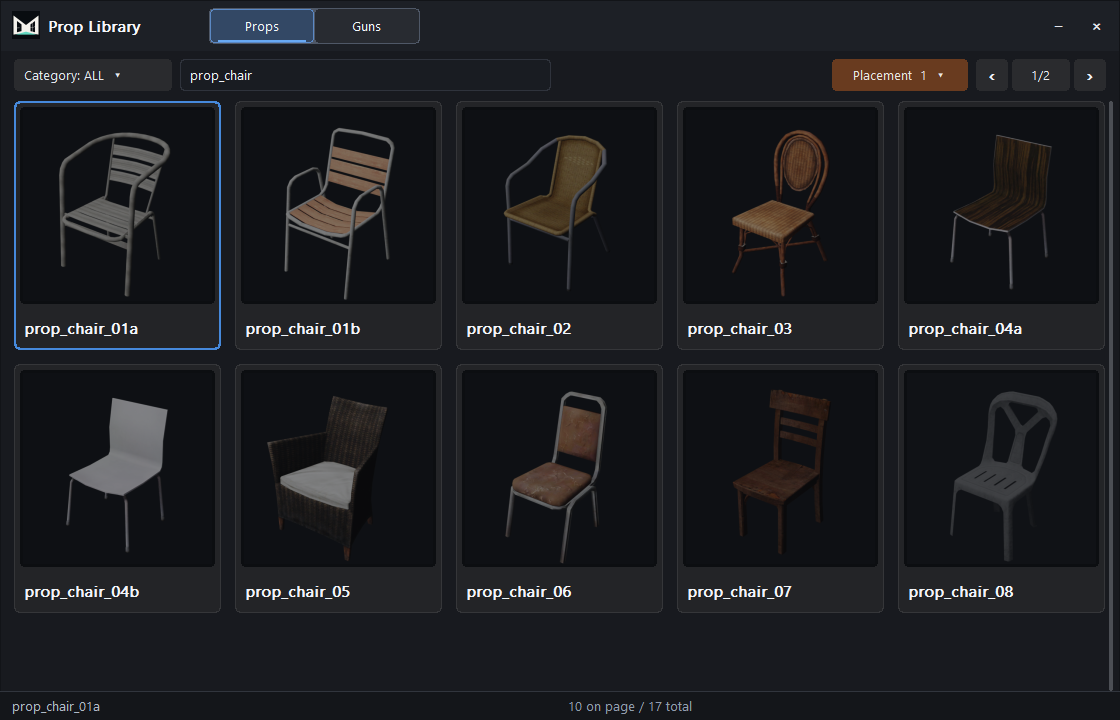
In the Props tab, search for prop_chair and press Enter. This example uses prop_chair_04a. You can also search for a broader name such as chair.
Place it in the scene.
Click the prop's preview, or its Place as Prop action. The browser hides while you place the object in Blender.
Move the preview over your floor, click the left mouse button once to place it, then press Enter to finish. Check that the prop sits where you intended.
Select what you want to change.
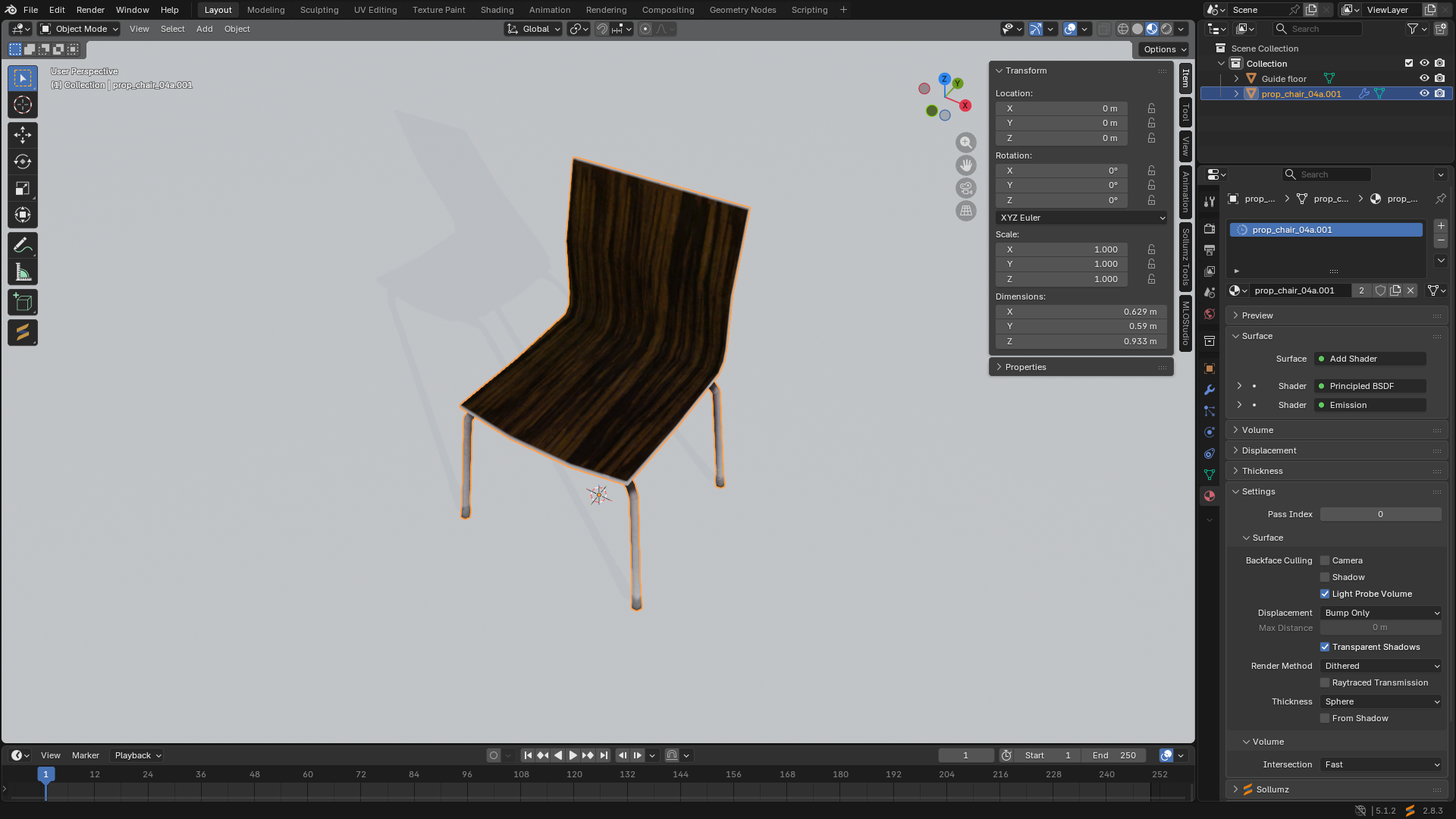
Return to Blender and select only the prop you just placed. Stay in Object Mode. Select the visible mesh itself, rather than a parent or collision object.
Switch the viewport to Material Preview (Z → Material Preview) so you can see the textures.
If the object has several materials, select the material slot you want to replace in Blender's Material Properties. Then click Material Editor in the MLOStudio sidebar.
In Object Mode, a library material replaces the active material slot on the selected mesh. Keep other objects deselected for this first try.
Choose a finish from the library.
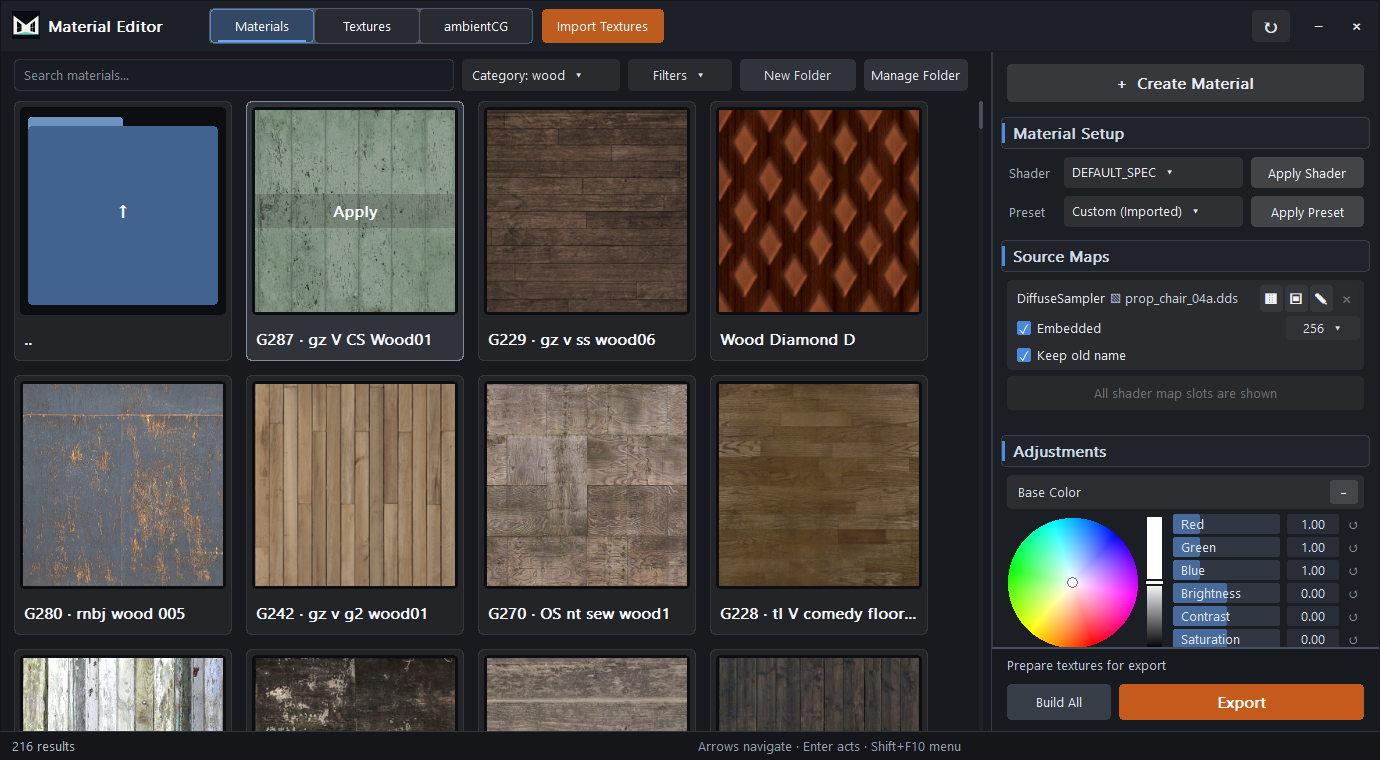
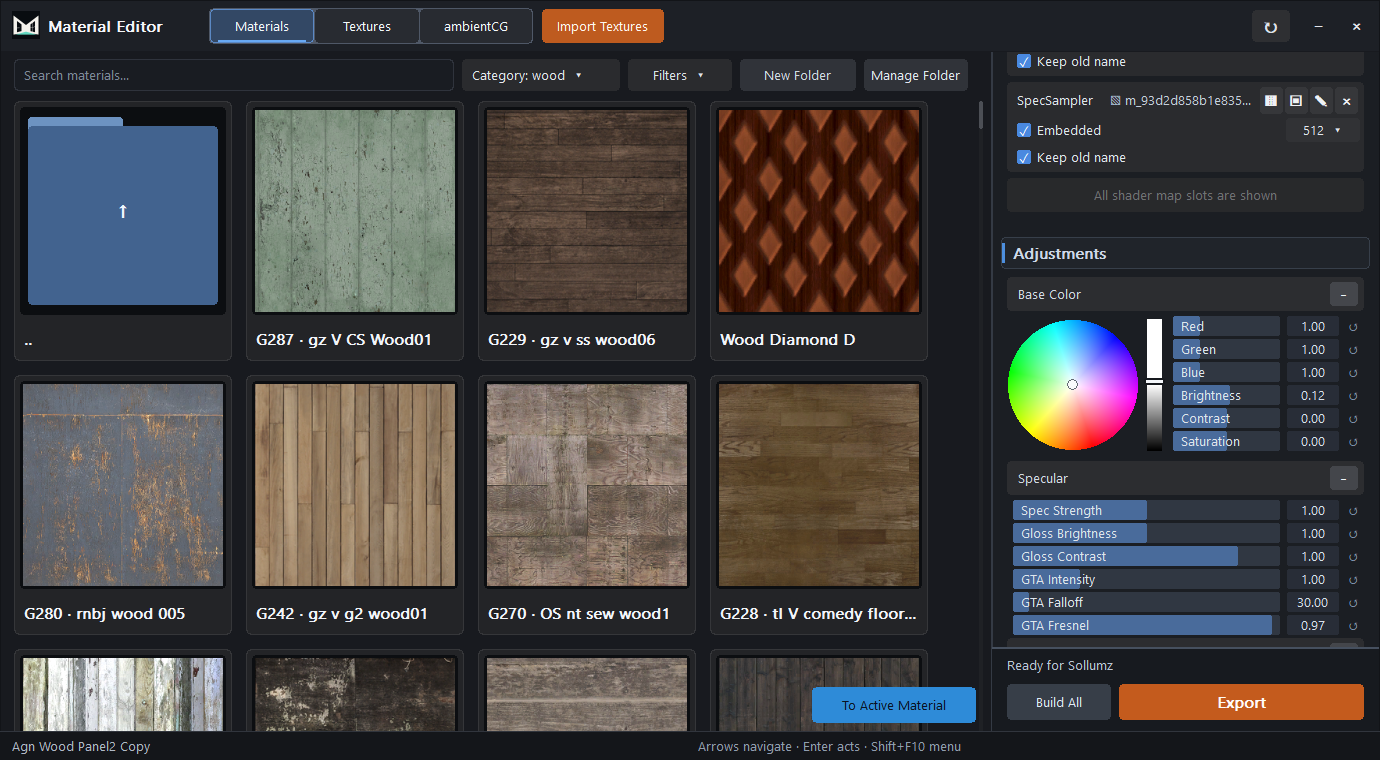
In the Material Editor, open the Materials tab. Browse the available materials and click Apply on the material you want to try.
Check the object in Blender. The intended surface should now have that material. For a first edit, choose a material with a visible colour texture.
Make one small change.
Scroll down in the editor's right-hand panel to Adjustments → Base Color. Change Brightness a little, then release the slider and look at the result in Blender.
MLOStudio updates the material and prepares the textures after you finish the edit. Wait for Ready for Sollumz. If you see Texture preparation failed, fix the reported problem before continuing.
Save your Blender scene.
Return to Blender and choose File → Save As. Give your project a name and save the .blend file in a folder you can find again.
Before stopping, check that the prop is in the right place and the intended surface has your edited finish. Automatic material updates do not save the whole Blender scene.
You have placed a prop, applied a material and changed its appearance. Use the same steps to furnish a larger scene.
NEXT STEP
Taking a whole interior into FiveM.
A saved Blender scene is the result of this exercise. A playable MLO also needs the game model, collision, rooms, portals, world placement and a tested resource.
Follow the full MLO checklist ↗Stuck on a step? Ask on Discord with the step number, your Blender and MLOStudio versions, and a screenshot of the problem.